
Connecting
Site Manager
Store connection details as sites, sort them into folders, find them fast and import them from other programs.
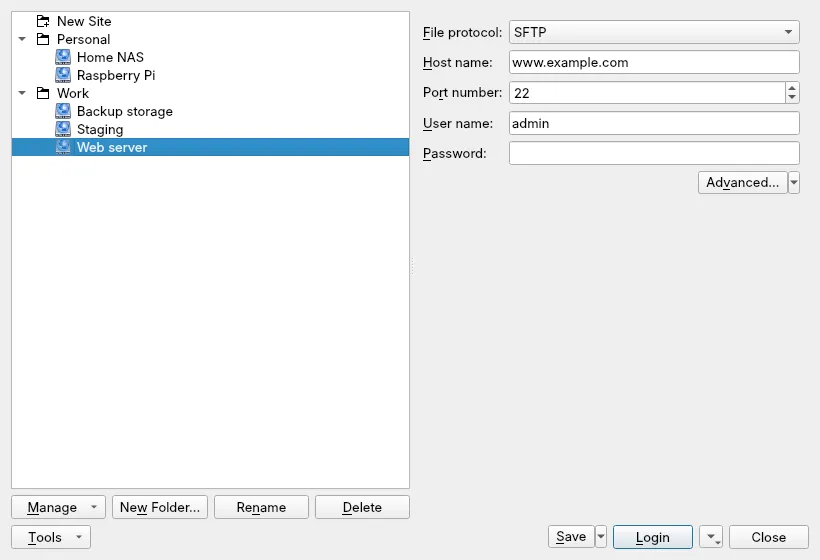
The Site Manager is where every connection starts. It opens when linscp starts and whenever you open a new remote tab (Ctrl+N, or Tabs › New Tab › Remote Tab…). The tree on the left holds your saved sites, folders and workspaces; the form on the right shows the selected site’s connection details.
Connect to a server once
Section titled “Connect to a server once”- Select New Site at the top of the tree.
- Choose the File protocol and, where offered, the Encryption. See Choosing a protocol.
- Type the Host name. The Port number follows the protocol unless you change it.
- Fill in User name and Password, or leave the password empty to be asked for it.
- Click Login.
You can paste a whole URL such as sftp://alice@files.example.org/var/www/
into Host name. When you leave the field, linscp splits it into protocol,
host, port, user and directory.
Protocol-specific shortcuts sit on the same form. With FTP, Anonymous login fills in the conventional anonymous user name and password and locks both fields. With Amazon S3, the user and password labels change to the access key fields, and Credentials from AWS environment takes them from your AWS setup instead (see WebDAV and S3 settings).
Save a site
Section titled “Save a site”Click Save to store the form as a site. In the dialog, give the site a
name and, if you like, a Folder. A slash in the name also creates
folders: Clients/Example/staging lands in two nested folders.
Saving the password is optional and off by default. A saved password is only obfuscated, unless you set a master password.
The arrow beside Save offers:
- Save As… to store the form under another name, leaving the original.
- Set Defaults to make the current form the starting point for every new site.
Organize sites
Section titled “Organize sites”Right-click an item in the tree, or use Manage, for the actions that fit it: Edit, Clone to New Site, Rename (or F2), Delete, New Folder…, Generate Session URL/Code… and Desktop Icon. Drag a site onto a folder to move it there.
A site’s color and note, set in Advanced site settings, show in the tree and under the form.
Find a site
Section titled “Find a site”Start typing while the tree has focus. linscp jumps to the first match; Tab and Shift+Tab move between matches, and Esc ends the search. Ctrl+F (Find Site) opens the search box directly. Options in the search menu sets what is matched:
- Beginning of Site Name Only: the name must start with what you type.
- Any Part of Site Name: the text may appear anywhere in the name.
- All Major Site Fields: host and user name are searched as well.
Import sites
Section titled “Import sites”Tools › Import Sites… reads connections from other programs. Choose the source in Import from, check the sites you want and confirm:
- FileZilla: its
sitemanager.xmlfrom~/.config/filezilla. - OpenSSH: hosts from
~/.ssh/config. Keys in OpenSSH format are offered for conversion to PuTTY format. - known_hosts: host keys from
~/.ssh/known_hosts, added to the hosts linscp trusts. - INI file: sites from another WinSCP or linscp configuration file.
- PuTTY and KiTTY: their saved sessions.
Other tools
Section titled “Other tools”The Tools menu also holds Import/Restore Configuration… and
Export/Backup Configuration… for the whole configuration file,
Clean Up… to remove data linscp has stored, and Run Pageant and
Run PuTTYgen. Those two are enabled only when the programs are found
beside linscp or on your PATH.