
Start here
Tour of the interface
The Commander and Explorer layouts, and what each part of the main window does.
The main window comes in two layouts. Commander shows your computer and the server side by side. Explorer shows only the server, with a folder tree, much like a desktop file manager. Both offer the same commands; only the arrangement and some keys differ.
Choose a layout
Section titled “Choose a layout”Open Options › Preferences, go to Environment › Interface, and pick Commander or Explorer. The change takes effect the next time you start linscp. In the Explorer layout, Preferences… is in the View menu.
Commander
Section titled “Commander”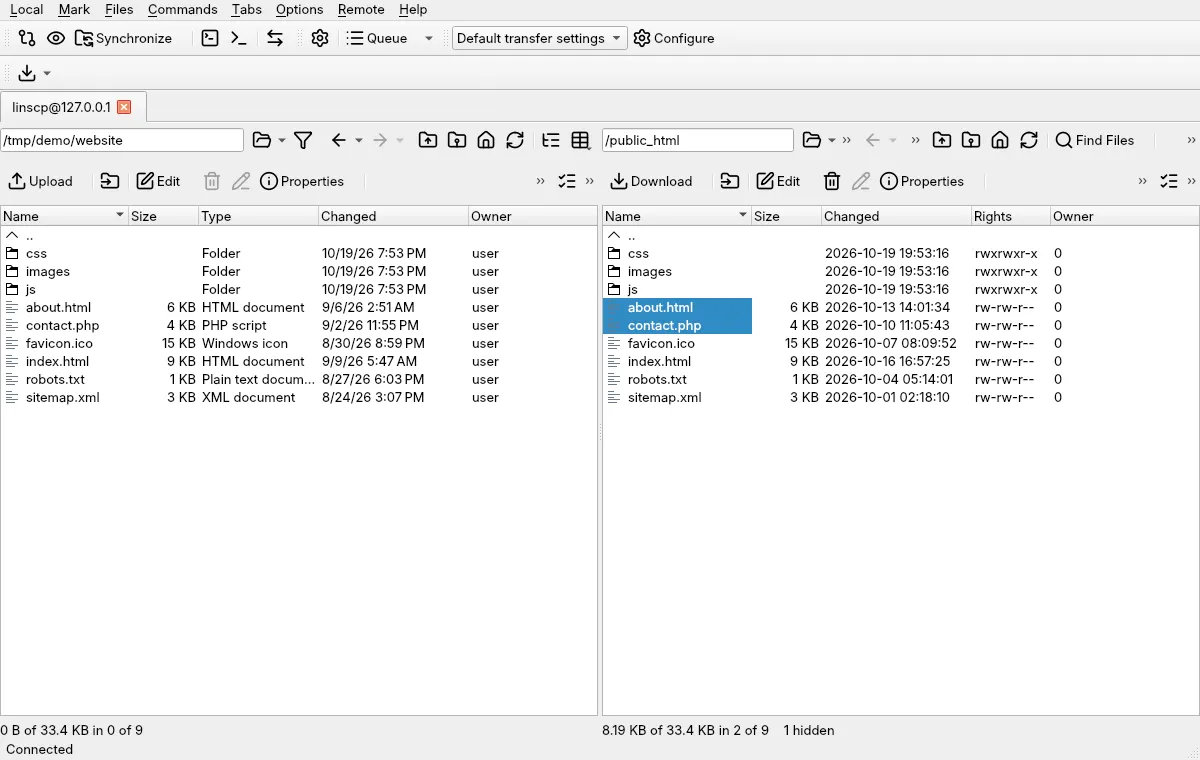
From top to bottom:
- Menu bar. Local and Remote hold commands for the left and right panel. Mark selects files, Files acts on the selection, Commands holds tools such as synchronization, the console and find. Tabs manages sessions and sites, Options controls what the window shows, and Help links to the project pages.
- Toolbars. Shortcuts for common commands, the queue, and the transfer settings preset that new transfers use. Right-click a toolbar to show, hide or customize toolbars, or use Options › Toolbars.
- Session tabs. One tab per open connection. You can also open a local tab that browses two local folders. Use Ctrl+Tab to cycle through them.
- The two panels. Each panel has a path box, navigation buttons (back, forward, parent, root, home, refresh) and a row of file buttons such as Upload or Download, Edit and Properties. Below them is the file list. Click a column header to sort; right-click it to choose columns. The active panel is the one with the focus; Tab switches.
- Status lines. Under each panel: how much of the folder is selected, and how many files are hidden. The window’s status bar at the very bottom shows the connection state.
The keys follow two-panel file managers such as Midnight Commander: F5 copies to the other panel, F6 moves, F4 edits, F9 shows properties, and F10 quits. The keyboard shortcuts page lists them all.
Explorer
Section titled “Explorer”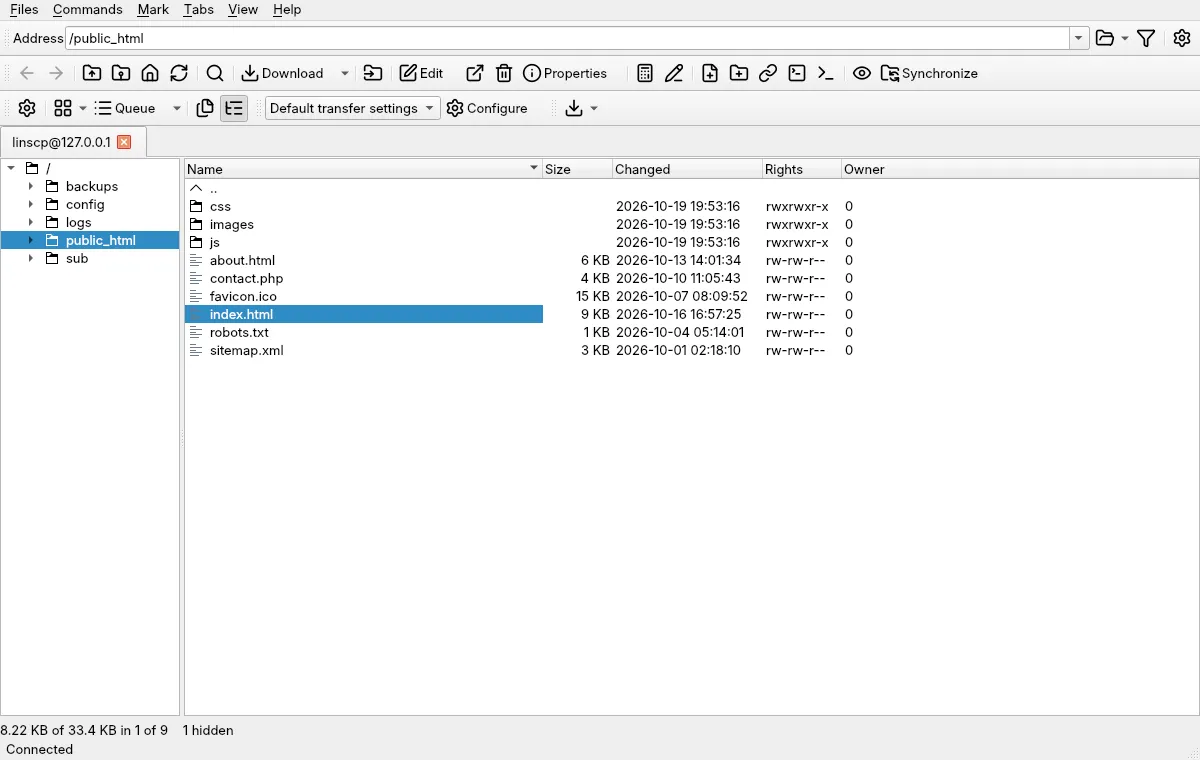
The Explorer layout has an Address box at the top, toolbars below it, the session tabs, then the remote folder tree on the left and the file list on the right. Its menus are Files, Commands, Mark, Tabs, View and Help. To move files between the server and your computer, drag them to or from your file manager, or use Download and pick a local folder. Keys follow desktop conventions, for example F2 to rename.
The queue
Section titled “The queue”Transfers that run in the background appear in the queue list below the file panels. Each row shows the operation, source, destination, progress and speed. Right-click a row to suspend, resume, reorder or cancel it. By default the list hides itself while it is empty; change that under Options › Queue. See queue and background transfers.
The command line
Section titled “The command line”Options › Command Line (Ctrl+Shift+M) adds a single-line command box under the panels. On the remote side it sends the command to the server’s shell; on a local side it runs the command in that folder. See console and remote commands.
Themes and icons
Section titled “Themes and icons”With Interface theme set to Automatic, linscp follows your desktop’s light or dark style. Set it to Light or Dark on the Interface page to fix it. The Window page, next to it, picks the icon set. For more on the look, see interface, window and panels.