
Transfers
Transfer settings and presets
Control how files are transferred, save named presets, pick them automatically, resume and limit speed.
Transfer settings decide how a file travels: text or binary mode, permissions, timestamps, which files to skip, and how fast. You can set them in three places:
- Default transfer settings apply when nothing else is chosen.
- A preset is a named set of settings you can switch to in one click.
- The copy dialog lets you change the settings for one transfer only.
The same settings also drive synchronization and keeping a directory up to date.
The settings
Section titled “The settings”Transfer mode – Text, Binary or Automatic, with the mask of files that go in text mode. See Text and binary modes.
Filename modification – leave names alone (No change), force Upper case or Lower case, or Lower case 8.3. Replace ‘\:*?’… swaps characters that the target system does not allow in names.
Upload options
- Set permissions gives uploaded files fixed permissions, such as
rw-r--r--. Add X to directories makes the uploaded directories enterable. - Ignore permission errors carries on when the server refuses to set them.
- Remove BOM and EOF marks strips UTF-8 byte order marks and end-of-file marks from text files.
- Encrypt new files applies the site’s file encryption.
- Clear ‘Archive’ attribute is meaningful on Windows only.
Download options – Preserve read-only keeps the read-only flag on downloaded files.
Common options
- Preserve timestamp keeps the modification time, with Including directories for directories too. See Timestamps.
- Calculate total size adds up the job first, so the progress window can show the time left.
- Speed (KB/s) caps the bandwidth. Unlimited removes the cap.
Other
- File mask includes or excludes files by name, size or date, for
example
*.php; | .git/to skip a Git directory. See File masks. - New and updated files only skips files whose target copy is the same age or newer.
- Exclude hidden files and Exclude empty directories do what they say.
Presets
Section titled “Presets”Manage presets in Options › Preferences › Transfer. The first entry is the default settings; the others are presets.
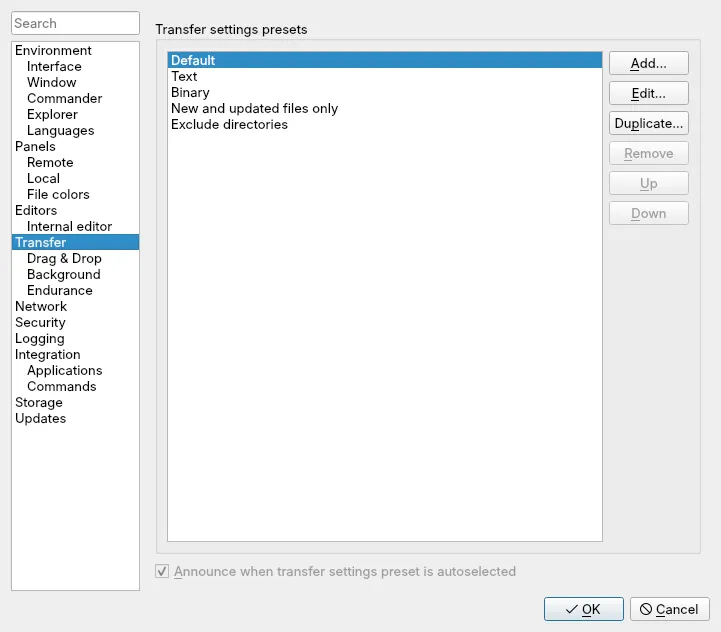
- Click Add…, or select a preset and click Duplicate….
- Enter a Preset description, for example Website upload.
- Change the settings and click OK.
To use a preset, choose it on the Transfer Settings toolbar (it then applies to every transfer until you change it), or in the list in the copy dialog for a single transfer.
Choose a preset automatically
Section titled “Choose a preset automatically”A preset can switch itself on when you work in a matching place.
- Edit the preset and tick Automatically select this preset when.
- Fill in any of Hostname mask, Username mask, Remote directory mask and Local directory mask. Current fills them with your present session and directories.
- Click OK.
With Announce when transfer settings preset is autoselected, linscp tells you each time a rule kicks in.
Resume and temporary file names
Section titled “Resume and temporary file names”On SFTP, linscp can write a file under a temporary name ending in
.filepart and rename it when the transfer is complete. If the transfer
breaks, the next attempt finds the partial file and offers to continue from
where it stopped. While a file is being replaced, the old version stays in
place until the new one is complete.
Set this up in Options › Preferences › Transfer › Endurance, under Enable transfer resume/transfer to temporary filename for: All files, Files above a size, or Disable. Disable it when you may overwrite files but not create new ones in the target directory, or when the file’s owner and group must not change.
The same page sets Automatic reconnect: with Automatically reconnect session, if it breaks during transfer, linscp reconnects and carries on.
FTP transfers can be resumed by hand from the overwrite prompt. SCP and WebDAV cannot resume.