
Preferences
Preferences overview
Find your way around the Preferences dialog, change the interface language and set up update checks.
Program-wide settings live in one dialog. Open it with Options › Preferences… or Ctrl+Alt+P. The Site Manager’s Tools menu has a Preferences… entry too, so you can reach it before you connect.
Settings here apply to every session. Settings for one server belong in the Site Manager; see advanced site settings.
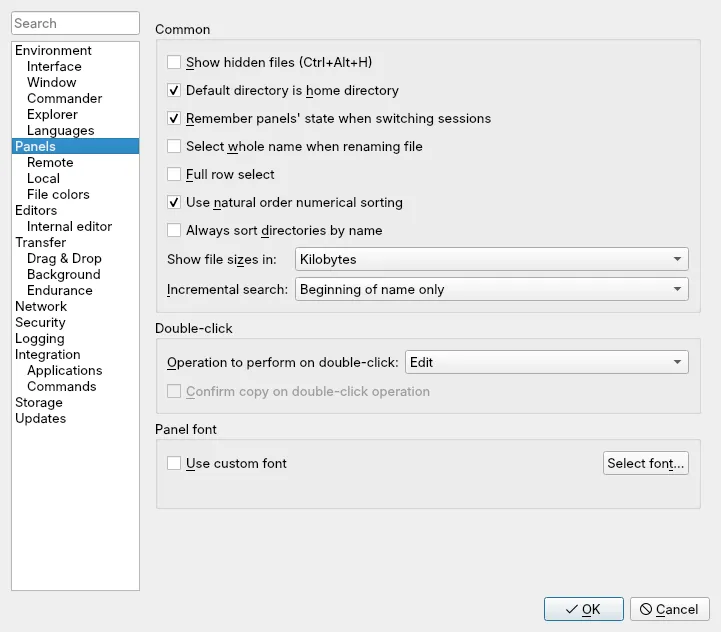
Finding a setting
Section titled “Finding a setting”The tree on the left groups the pages. Type in the Search box above it to list every setting whose label contains your text, then pick one to jump to its page. Click OK to save your changes or Cancel to drop them.
Page map
Section titled “Page map”| Page | What you set there | Read more |
|---|---|---|
| Environment | Which actions ask for confirmation; beeps and notifications | |
| Interface, Window, Commander, Explorer | Layout, theme, window title, tabs, workspaces, compare criteria | Interface and panels |
| Languages | Interface language | below |
| Panels, Remote, Local, File colors | File list behaviour and colours | Interface and panels |
| Editors, Internal editor | Which editor opens which file | Editors |
| Transfer, Drag & Drop, Background | Presets, drag behaviour, queue | Transfer settings |
| Endurance, Network | Resuming, reconnecting, active FTP | Network and reconnection |
| Security | Master password, authentication agent, host CAs | Master password |
| Logging | Session and XML logs | Logging |
| Integration, Applications, Commands | Desktop links, PuTTY or terminal, custom commands | Linux desktop |
| Storage | Where settings and temporary files go | Configuration storage |
| Updates | Update checks | below |
Interface language
Section titled “Interface language”On Environment › Languages, pick a language from the list and click OK. The change applies the next time you start linscp. A language shown in grey has a translation file that failed to load.
Get more… opens linscp’s translation notes on GitHub, which explain how to add or improve a language. See also translations.
Update checks
Section titled “Update checks”linscp can look for a newer release on its GitHub Releases page. Nothing is checked until you allow it.
On the Updates page:
- Automatic check period: Never, Daily, Weekly or Monthly.
- Display information about update on startup shows the result when linscp starts.
- Check for beta versions: On includes GitHub pre-releases, Off skips them. Auto includes them while linscp’s version is below 1.0, which is the case for all current releases.
- Connection: no proxy, the system’s proxy settings, or a proxy host and port that you enter. This proxy is used for update checks only.
To check once by hand, use Help › Check for Updates, or Check for Updates in the Site Manager’s Tools menu. linscp reports the result; installing a new version is up to you.