
Start here
Your first connection
Connect to a server, copy files both ways and disconnect, in about five minutes.
This walk-through connects to an SFTP server, uploads a file, downloads one and
closes the session. You need the server’s host name, your user name, and a
password or SSH key. The example uses files.example.org and the user alice.
Open a session
Section titled “Open a session”When linscp starts, the Login window opens. It is the Site Manager: stored sites on the left, connection details on the right. Later you can reopen it with Ctrl+N, or Tabs › Sites › Site Manager….
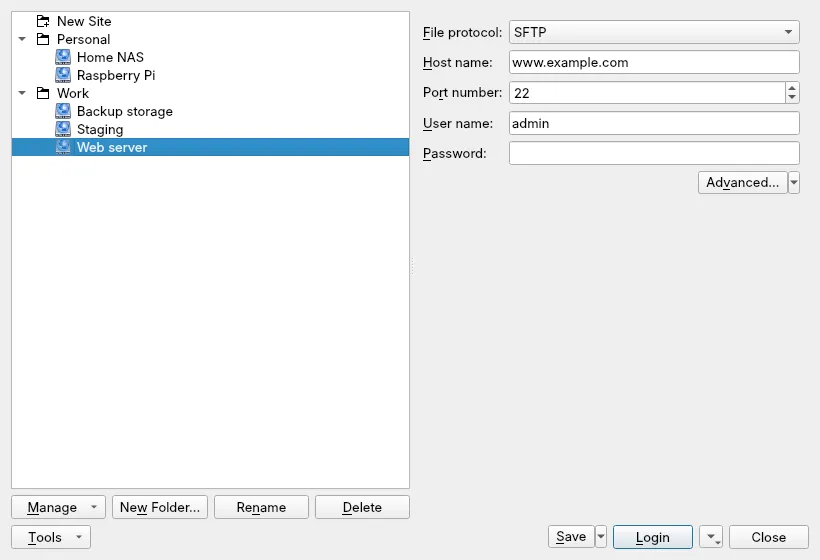
- Select New Site at the top of the tree.
- Leave File protocol at SFTP unless your provider told you otherwise.
- In Host name, type
files.example.org. Keep Port number at22. - Fill in User name (
alice) and, if you log in with a password, Password. For key login, leave the password empty and pick the key under Advanced… › SSH › Authentication; see authentication. - Click Save if you want to keep the site. Give it a name and, if you like, a folder. Leave the password unsaved unless the computer is yours alone.
- Click Login.
Check the host key
Section titled “Check the host key”On the first connection to an SSH server, linscp shows the server’s key fingerprint and asks whether to trust it. Compare the fingerprint with the one your administrator or hosting provider publishes. If it matches, click Accept: linscp remembers the key and does not ask again. If the key ever changes without warning, stop and find out why. Verifying host keys has the details.
Look around
Section titled “Look around”After login, the main window shows a tab for the session. In the default Commander layout, the left panel lists your local files and the right panel lists the server’s.
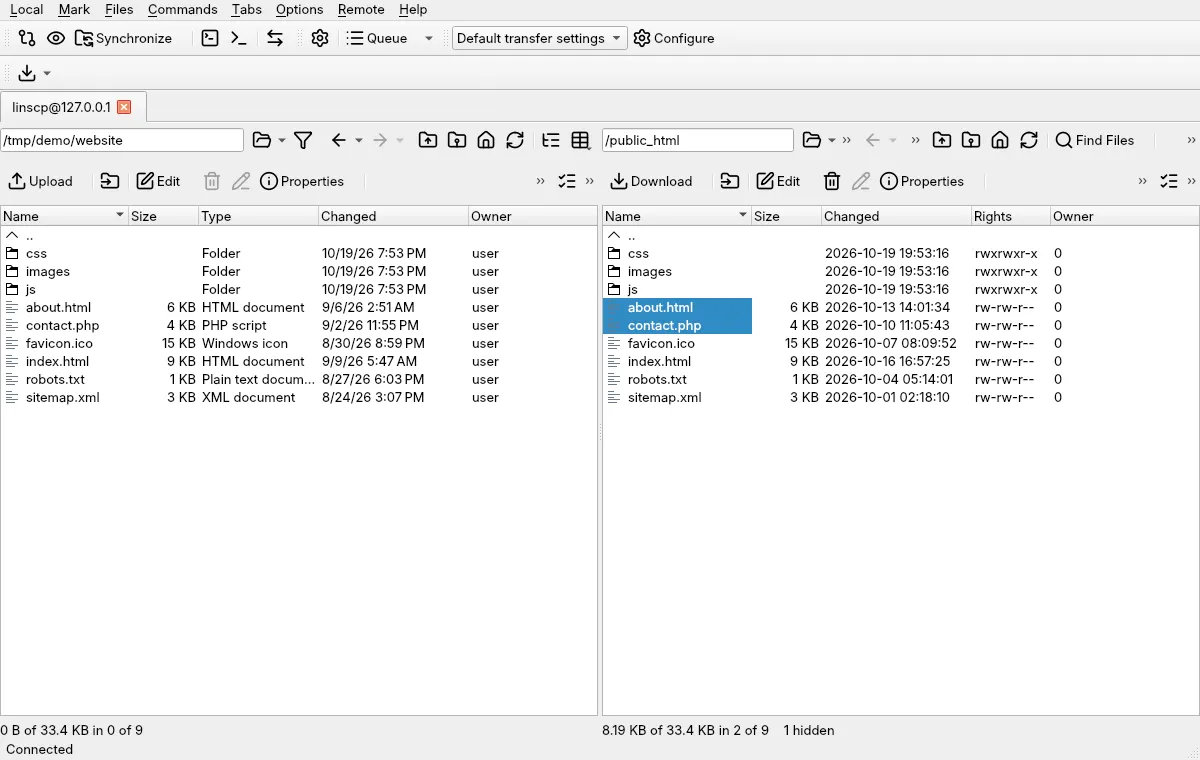
- Double-click a folder to enter it; double-click
..to go up. - Type a path into the box above a panel and press Enter to jump there.
- Press Tab to move the focus between the two panels.
Upload a file
Section titled “Upload a file”- In the left panel, select the file, for example
report.pdf. Hold Ctrl to select several. - In the right panel, open the folder that should receive it.
- Press F5 or click Upload above the left panel.
- Check the target folder in the dialog and click OK.
You can also drag the file from one panel to the other, or from your file manager into the right panel.
Download a file
Section titled “Download a file”Select files in the right panel and press F5, or click Download. The files go to the folder shown in the left panel. F6 moves instead of copying: the original is deleted after the transfer.
Disconnect
Section titled “Disconnect”Choose Tabs › Disconnect Session, or close the session’s tab. When the last session closes, the Login window returns so you can pick another site.
Where to go next
Section titled “Where to go next”- Tour of the interface: panels, toolbars and the queue.
- Site Manager: folders, defaults and importing sites.
- Uploading and downloading: the copy dialog and its options.