
Working with files
Navigating
Move between directories with the path box, history, bookmarks and location profiles.
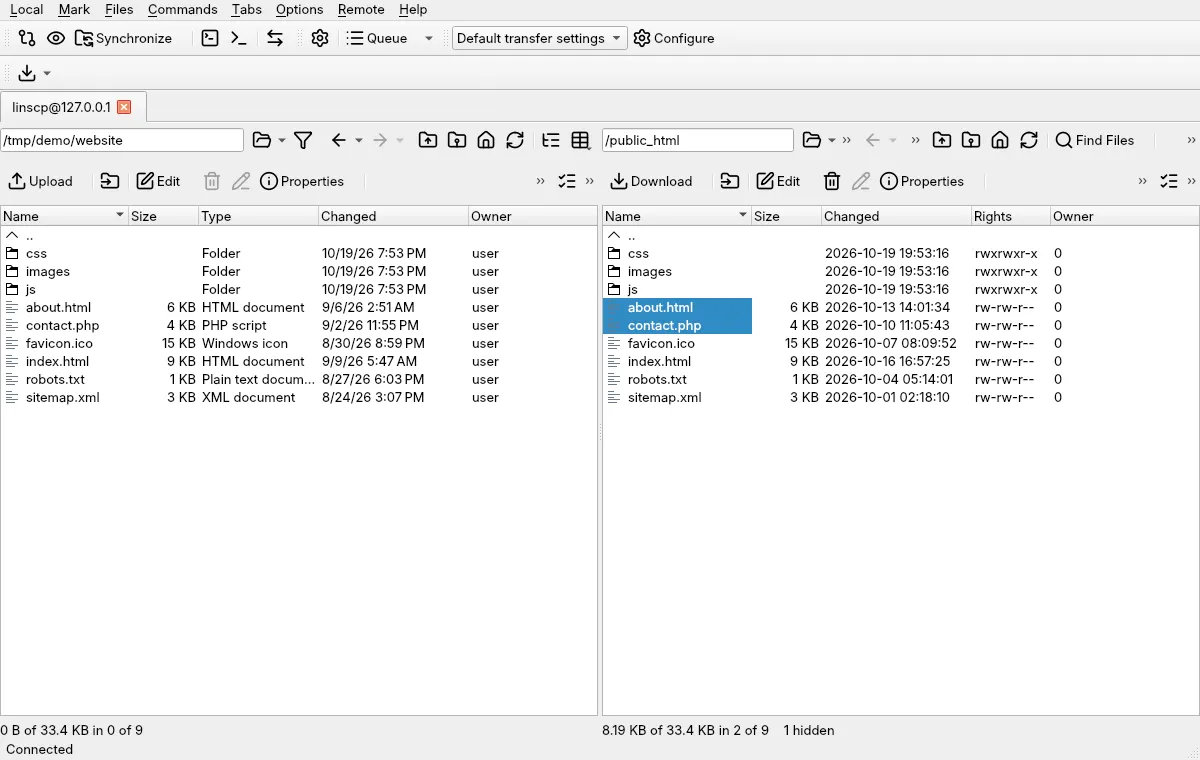
Each panel shows one directory at a time. This page covers the ways to get from one directory to another: typing a path, walking up and down the tree, going back through your history, and jumping to saved places.
Move around with the keyboard and mouse
Section titled “Move around with the keyboard and mouse”- Double-click a directory, or select it and press Enter, to open it.
- Press Backspace, Alt+Up or Ctrl+PgUp to go to the parent directory.
- Press Ctrl+\ for the root directory and Ctrl+H for your home directory.
- Press Ctrl+R to reload the listing.
- Press Ctrl+Alt+H to show or hide hidden files.
The same commands sit in the panel’s menu (Local or Remote) under Go To.
Type a path
Section titled “Type a path”The box above each file list shows the current path. To go somewhere else:
- Press Ctrl+L (or Alt+D). In the Commander interface this opens the Open Directory/Bookmark dialog; in the Explorer interface it puts the cursor in the address bar.
- Type the path, for example
/var/www/html, and press Enter.
Remote › Change Directory (Alt+F2) and Local › Change Drive (Alt+F1) open a list of recent and well-known locations for that panel.
Go back and forward
Section titled “Go back and forward”Alt+Left and Alt+Right step through the directories you visited in that panel. The Back and Forward toolbar buttons have a drop-down arrow that lists up to ten earlier directories; pick one to go straight there.
Bookmarks
Section titled “Bookmarks”A bookmark is a saved directory path for one side, local or remote.
- Add Path to Bookmarks (Ctrl+B) saves the current directory.
- Open Directory/Bookmark… (Ctrl+O) shows your bookmarks. Double-click one to open it, or type a path in Open directory.
The dialog has two lists. Site bookmarks belong to the site you are connected to. Shared bookmarks are available in every session. Use Add, Remove, Up and Down to edit a list, and Shortcut… to give a bookmark a key of its own. For a local path, Browse… opens a folder picker.
Location profiles
Section titled “Location profiles”In the Commander interface you can save a pair of directories, one local
and one remote, as a location profile. Opening the profile moves both panels
at once, which is handy when a project lives in /home/alice/site locally
and /var/www/site on the server.
- Open both directories in their panels.
- In Open Directory/Bookmark, click Location Profiles….
- Click Add… and name the profile. The dialog keeps Site Location profiles for the current site apart from Shared Location profiles.
Profiles can be renamed, reordered, given a shortcut, or moved into a folder with Move To…. To make Ctrl+O open profiles directly, tick Use Location Profiles instead of Directory Bookmarks in Options › Preferences › Commander.
Other shortcuts
Section titled “Other shortcuts”- Explore Directory (Ctrl+Alt+E) opens the local directory in your desktop’s file manager.
- Copy Path to Clipboard in the panel’s menu copies the current path.
- In a local tab, Path from Other Panel (Ctrl+.) opens the other panel’s directory in this one.
- Commands › Synchronize Browsing keeps the two panels in step; see Comparing and synchronized browsing.